
Signing Up & Creating Your Account
This guide walks you through creating your Powerful Docs account, from the sign-up form to a verified, ready-to-use dashboard.
Step 1: Go to the Sign-Up Page
Open your browser and go to:
https://app.surereplies.com/register
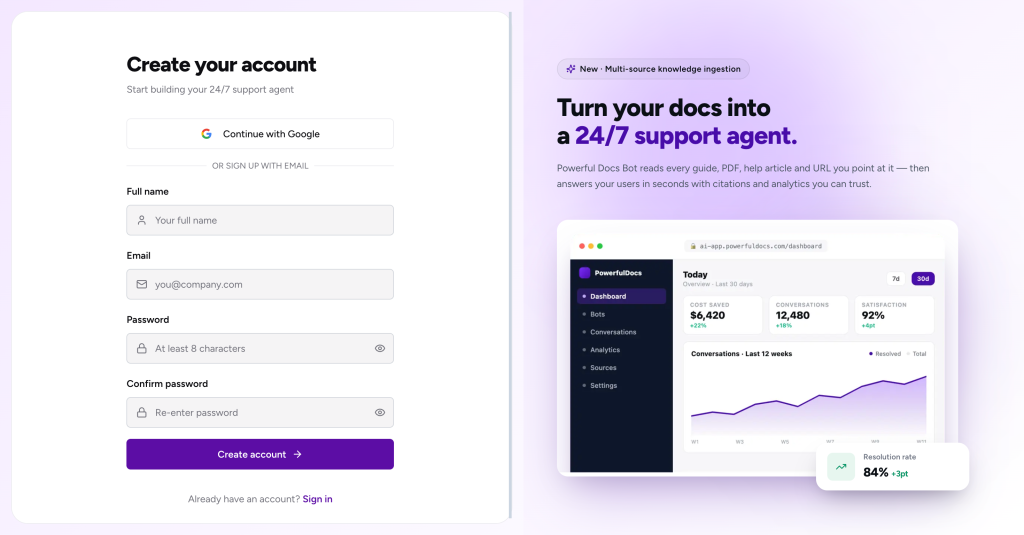
You will be prompted to add details to signup or you can simply click on Continue with Google to directly login using your Google Account.
Step 2: Fill In Your Details
You will be asked for three pieces of information:
| Field | Notes |
|---|---|
| Full Name | Used in your dashboard and team invitation emails |
| This becomes your login. Use a work email if setting up for a team. | |
| Password | Minimum 8 characters. Use a strong, unique password. |
Once filled in, click “Create Account”.
Step 3: Verify Your Email
After submitting the form, Powerful Docs sends a verification email to the address you provided.
- Open your email inbox.
- Look for an email from Powerful Docs with the subject “Verify your email address” (or similar).
- Click the activation link inside the email.
Didn’t get the email? Check your Spam or Promotions folder. If it’s not there after a few minutes, click “Resend verification email” on the login page.
Step 4: Log In
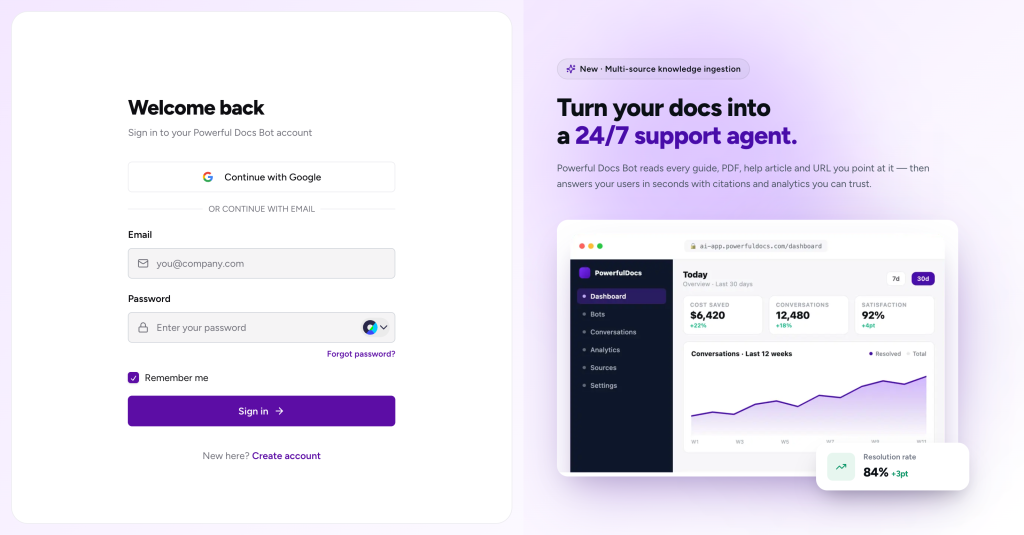
Once your email is verified, you’ll be redirected to the dashboard automatically, or you can log in manually at:
Enter your email and password and click “Log In”.
Step 5: Complete the Onboarding Wizard
On first login, Powerful Docs launches a short three-step onboarding wizard to get your first bot up and running:
| Step | What You Do |
|---|---|
| 1. Name your bot | Give your bot an internal name (e.g., “Acme Support Bot”) |
| 2. Add a knowledge source | Choose a source type and connect your content |
| 3. Go live | Copy your embed snippet or save it for later |
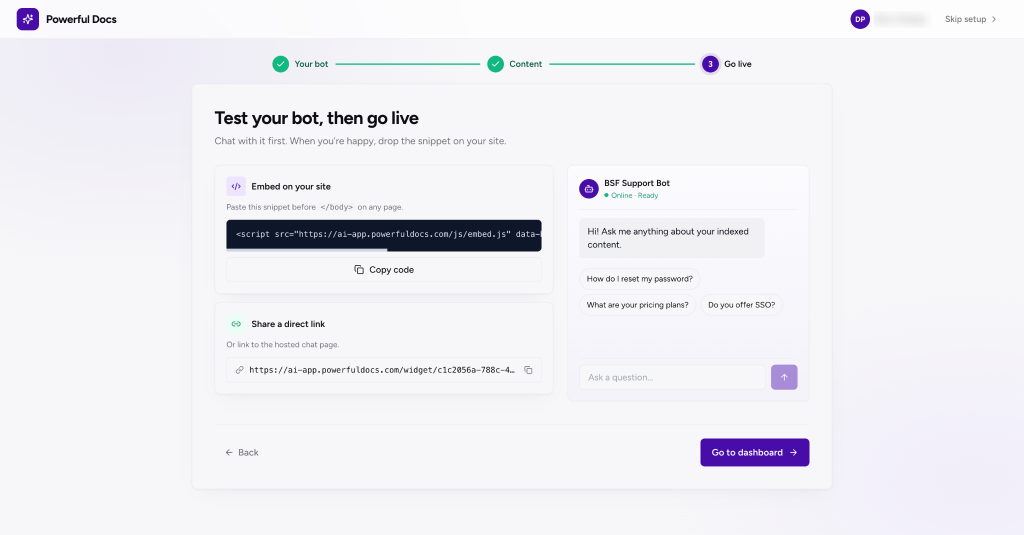
You can complete all three steps now or skip them and return to the dashboard by simply clicking on the Skip Setup button on the top right, your account is fully active either way.
Signing In on Future Visits
Go to https://app.surereplies.com/ and enter your email and password. If you forget your password, click “Forgot password?” on the login screen and follow the reset link sent to your email.
We don't respond to the article feedback, we use it to improve our support content.